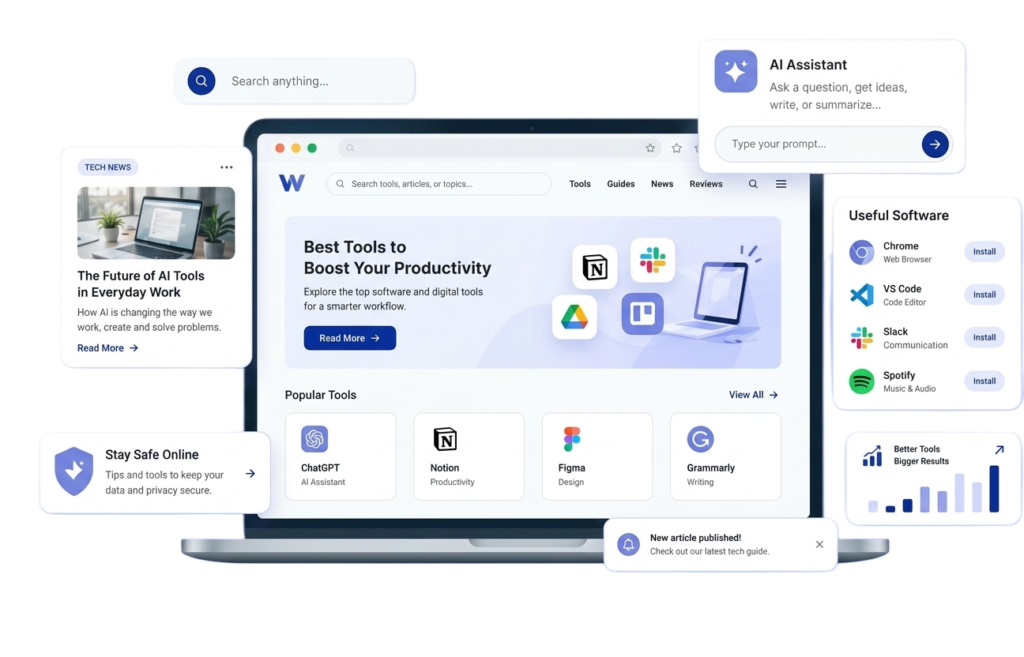
Technology News and Trends: Latest Innovations, AI Developments, Software Updates & Digital Breakthroughs

Technology news arrives in a flood, and most of it changes nothing you do. This page is the filter. You will get the latest technology news from recent weeks, the technology trends 2026 is really about, the AI developments and software updates worth acting on, and the emerging technology that is still a long way from your desk. Every item is attributed to the company or agency that announced it, so you can see what a claim is and what is independently confirmed. We update this guide as stories develop. The date at the top shows when it was last reviewed, and the sources at the bottom let you read the originals. Key takeaways: AI is moving into everyday devices and operating systems. Software updates are getting more flexible and more AI-driven. Standards such as Matter and Wi-Fi 7 are maturing. Quantum computing has made measurable progress, but remains a research story. Treat performance figures as vendor claims until independent tests appear. Latest Technology News at a Glance (November 2026) This table summarizes the latest technology news. Dates come from the announcing company’s own pages. Date Who What they announced How to read it October 2026 Google Gemini 4 Argon, a reasoning model rolled out across its AI products Check which plan you need and wait for independent comparisons October 2026 Google Gemini 4 Carbon in pre-release testing for engineering and cyber defense Not publicly available yet October 15, 2026 Microsoft Windows 11 improvements to speed, updates, search and phone integration Rollout timing varies by device and region October 15, 2026 Google Quantum AI Magic state cultivation results on the Willow quantum processor, published in Science A research milestone, not a product October 27, 2026 Apple New iMac with the M6 chip and macOS 27 Performance numbers are from Apple’s own testing Each of these gets a closer look below. AI Developments in Technology News: What Is Actually New Bigger models, more specialized roles According to Google, Gemini 4 Argon is its new top-tier reasoning model. The company lists coding, financial analysis, and legal work among its uses and says it is spread across AI Studio, the Gemini API, Google Cloud, Search, and the Gemini app. Roughly two weeks afterward came Gemini 4 Carbon, aimed at long engineering projects and defensive security work. Google says only government and vetted security teams are testing it so far. The pattern in recent technology news is worth noticing: models are being positioned for specific professional jobs, and the most capable ones are tested with selected partners before release. If you rely on AI tools for work, expect staged rollouts and different access by plan or region. AI moves onto your device Apple describes its new M6 chip as including a dual 16-core Neural Engine and Neural Accelerators in each GPU core to support on-device AI, and says the new iMac is up to five times faster than the M4 for on-device AI tasks. Those figures come from Apple’s own testing, so treat them as marketing claims until reviewers measure them. Apple also says Siri AI, a new version of Siri powered by the next generation of Apple Intelligence, is in beta in macOS 27.2 and available only in certain languages. The trend is clear even if the numbers are unproven: more AI work is happening on the device itself, which can improve speed and privacy but depends on newer hardware. AI for safety and verification Google reports that SynthID Detector, which helps people test images, video, and audio for signs of AI generation, is going worldwide in English, and that Android Messages gets an optional scam-catching mode. Both reflect the same shift: the tools that create convincing fakes are now matched by tools that try to flag them. Neither is a guarantee, so keep your own habits, such as not tapping unexpected links. Stay alert, think critically, and use trusted sources when checking online information. Software Updates in the Latest Technology News: What to Do Windows 11 Microsoft’s October 15, 2026 announcement lists a broad set of changes. It says Windows is “up to 20% more responsive” in its testing, with improvements now beginning to roll out broadly and timing varying by device and region. On PCs with 8 GB of memory or less, Widgets load only when opened, which Microsoft says frees more than 200 MB. Other changes include more control over when updates install and fewer restarts, faster Bluetooth headphone pairing, a new search experience that can change settings and manage windows, closer phone-to-PC integration, a redesigned Photos app and several accessibility additions such as Screen Tint and improved Narrator math reading. Microsoft says the new search experience is available to Windows Insiders now and will roll out more broadly later this year. Some features need specific hardware or subscriptions, such as Copilot-powered features in Ink Canvas that require a Microsoft 365 subscription. The practical lesson: read the footnotes before assuming a feature will appear on your PC. macOS and Apple software Apple says the new iMac ships with macOS 27, and that the Siri AI beta arrives in macOS 27.2. As with any major release, give it a few weeks before upgrading a work machine, unless you have a full backup and time to troubleshoot. A safe routine for software updates Updates fix bugs and security holes, so avoid putting them off for months. A sensible routine: If an update causes trouble, our guide to fixing common tech problems walks through restarting, rolling back changes, and knowing when to reset. Technology Trends 2026: Six Shifts Worth Watching These trends have support from primary sources, not just buzz. 1. On-device AI As described above, chipmakers and software companies are building AI acceleration into everyday computers. Expect more features that run locally, along with more marketing numbers to scrutinize. 2. Smart-home standards growing up Matter 1.5, which the Connectivity Standards Alliance announced in November 2025, widened the standard to cover cameras, shades and garage doors, soil sensors and energy management. Standards
How to Fix Common Tech Problems: A Step-by-Step Tech Troubleshooting Guide for Beginners

Knowing how to fix common tech problems saves money, time, and a lot of frustration. A frozen phone, a sluggish laptop, a full storage warning, or a device that refuses to connect usually has a simple cause, and most of the time you can solve it yourself in a few minutes. The trick is to work in a sensible order instead of tapping at random. This guide gives you a repeatable method, then applies it to the problems people run into most: slow computers, frozen phones, full storage, app crashes, battery trouble, connection issues, lockouts, and fake “virus” warnings. This tech troubleshooting guide assumes no technical skills. You do not need any to fix common tech problems. If you can open Settings and follow numbered steps, you can use this guide. Menus differ between brands and software versions, so where a step varies, we point you to the maker’s own help page. The short version for how to fix common tech problems: Note exactly what is wrong, back up anything precious, restart, install updates, free up space, undo recent changes, and only then consider a reset or professional help. Never call a phone number shown in a pop-up. Key takeaways Find your problem fast: slow computer, frozen phone, full storage, app crash, battery drain, Wi-Fi or Bluetooth trouble, locked account, or a fake virus warning. Each has its own section below. The Troubleshooting Ladder: How to Fix Common Tech Problems in Order Most failures respond to the same sequence, and it is the backbone of how to fix common tech problems. Think of it as a ladder: start at the bottom with the cheapest, safest rung, and climb only if the problem remains. Rung Action Why it works Risk 1 Describe the problem precisely Clear symptoms point to the cause None 2 Protect your data A failed fix should not cost you your files None 3 Restart the device Clears temporary glitches Very low 4 Install updates Fixes known bugs and security flaws Low 5 Free up storage and close heavy apps Devices struggle when they run out of room or memory Low 6 Undo what changed recently Many faults begin right after a new app, driver or setting Low 7 Test in isolation Separates a hardware fault from a software one Low 8 Reset or reinstall Wipes out deep software problems High, because data can be lost 9 Ask for help Some faults need a repair Depends on who you ask Skipping steps is the most common error when people try to fix common tech problems. People jump to a factory reset when a restart and an update would have done the job. Rung 1: Describe the Problem Precisely Before touching anything, answer four questions: Write the answers down. If you later contact support, this note will save you minutes of back-and-forth. Rung 2: Protect Your Data Resets and repairs can erase files. Before you go further with anything risky, copy photos, documents, and anything irreplaceable to a second place, such as cloud storage or an external drive. If the device will not even start, you may not be able to do this, which is a strong argument for backing up regularly. Rung 3: Restart A restart is not a joke answer. It closes programs, clears temporary memory and gives the system a fresh start. Microsoft’s own performance guide ends its list of fixes with closing unused apps and browser tabs and then restarting if speed has not improved. Use Start, then Power, then Restart, rather than just closing the lid. Rung 4: Install Updates Updates correct bugs and close security holes. Install system updates first, then update apps. On Windows, open Settings, go to Windows Update, and choose “Check for updates”. On Android, go to Settings, System, then Software update. Keep the device plugged in or well charged while it installs. Rung 5: Free Up Storage and Memory Phones and computers misbehave when their storage is almost full. Google’s Android help says phones can start having problems when storage runs very low, and Microsoft includes freeing disk space among its PC speed-up tips. We cover the steps in detail below. Rung 6: Undo Recent Changes Think back to what changed before the trouble began. Uninstall recently added apps, remove new browser extensions, unplug new accessories, and roll back a setting you adjusted. Google’s guidance for a frozen Android phone is to remove recent apps one at a time, restarting after each one, to find the culprit. Changing one thing at a time is the only way to know what fixed it. Rung 7: Test in Isolation Try the same task on another device, another account or another network. If a website fails on every device in your home, the issue is probably your connection. If it fails only on one laptop, the laptop is the likely cause. This simple comparison cuts the guesswork. Rung 8: Reset or Reinstall A reset is a last resort because it removes your data and settings. Google lists a factory reset as the last-resort step for a frozen Android phone and stresses backing up first. Try uninstalling and reinstalling a single app before resetting the whole device. Rung 9: Ask for Help If the ladder has not worked, it is time for the manufacturer, a repair shop or a knowledgeable friend. Use official support channels, covered at the end of this guide. How to Fix a Slow Computer (Windows and Mac) Slow computers are the single most common complaint. Microsoft’s guide lists many remedies for Windows PCs and recommends working through them, since several factors can combine. Here is a practical order. If an older PC is still slow after all this, Microsoft says upgrading hardware may be a better long-term answer than more tweaking. Mac users can use the same logic: close heavy apps, restart, update macOS, free up storage, and check Activity Monitor for resource-hogging programs. How to Fix a Frozen or Unresponsive Phone (iPhone and Android) iPhone Apple’s support
Internet Basics: A Complete Beginner’s Guide to How the Internet Works and Getting Online

Most of us use the internet every hour without knowing what happens between tapping a link and seeing a page. This guide to internet basics fills that gap. You will learn what the internet actually is, how a message travels from your phone to a server and back, what the different connection types mean, how to read speed numbers, how to pick a plan, how to set up and protect your home network, and what to do when something stops working. You do not need a technical background to follow these internet basics. Every term is explained in plain language, and the guide links to deeper articles when a topic deserves more room. Plans, prices, and equipment change often, so the advice here focuses on principles that stay useful. Quick answer: The internet is a global network of connected networks. Your devices reach it through a router, a modem or similar equipment, and an internet service provider (ISP). Data travels in small pieces called packets, and the Domain Name System turns website names into the numeric addresses computers use. What Is the Internet? Internet Basics in Plain Language The internet is a very large network of computers that communicate with one another. It is the underlying infrastructure, the roads and cables. Mozilla’s developer documentation describes the web as a service built on top of that infrastructure, alongside other services such as email. That distinction trips people up, so here it is in one line each: When someone says “the internet is down,” they usually mean one of three things: their home connection has failed, their provider has a fault, or a particular website or app is having trouble. Knowing which one it is saves a lot of time, and we cover that later in the troubleshooting section. How the Internet Works: Internet Basics, Step by Step Imagine you open a news site on your phone. Behind that simple action, a chain of events takes place in a fraction of a second. Let’s look at the parts of these internet basics in turn. IP Addresses: The Street Addresses of the Internet Every device on a network needs an address so data knows where to go. MDN compares IP addresses to street addresses, and notes that devices on the same network share a common prefix, which lets a router keep one simple rule for a whole group of addresses instead of remembering every individual device. Your home usually has two kinds of addresses: a private one for each device inside the house, and a public one that represents your whole home network to the outside world. Providers can change the public address from time to time. DNS: The Address Book Computers use numbers, but people prefer names. ICANN, the organization that coordinates the domain name system, explains that every internet-connected device has an IP address, and that DNS lets you type a text-based domain name such as icann.org instead. ICANN calls it the address book of the internet. When you enter a domain name, your device asks DNS to look up the matching IP address, and then connects to it. That is why a DNS problem can make a site seem unreachable even though your connection is fine, and why changing DNS settings sometimes helps with certain faults. Packets: How Data Travels Data does not cross the network in one lump. According to Cloudflare’s learning center, a file such as an image is split into many small packets. Each packet carries a header, with details such as the sending and receiving addresses, and a payload, which is the piece of data itself. Routers read the header to decide where to send each packet next; packets can take different routes, and the receiving device reassembles them into the original file. Splitting data this way lets many conversations share the same cables at once, and it means the network can keep working if one route is busy. Routers, Modems and Switches These terms are often mixed up, so here is the short version: Device What it does Modem Converts the signal from your provider’s line into data your home network can use, and back Router Directs traffic between your devices and the internet, and usually creates your Wi-Fi network Switch Connects wired devices inside a local network and forwards messages to the right recipient Access point or mesh node Extends Wi-Fi coverage to more rooms MDN notes that a home router is often a combination of a switch, a router and a modem in one box. Providers frequently supply a single device that does all three jobs. Types of Internet Connections How your home reaches the internet affects speed, reliability, and cost. The US Federal Communications Commission (FCC) says providers may deliver home broadband through DSL, cable or fiber optics, and that availability varies by location. Here is how the main types compare in general terms. Type How it reaches you Typical strengths Typical drawbacks Fiber Light signals through optical cable Often the most capable option, with strong upload speeds Not available everywhere Cable Coaxial cable shared with TV service Widely available and fast Speeds can drop when many neighbors are online DSL Telephone lines Often available where others are not Performance can fall as distance from the provider’s equipment grows Fixed wireless Radio link from a nearby tower to an antenna at your home Useful in some areas with limited wired options Can be affected by distance and obstructions Satellite Signals to and from a satellite Reaches remote places Delay (latency) is often higher than wired options Mobile broadband Cellular network through a phone or hotspot Portable and quick to start Data limits and variable signal These are general patterns, not guarantees. Individual providers differ, so check what is available at your address. The FCC suggests using its national broadband map at broadbandmap.gov to see options in your area. Internet Speed Explained: Mbps, Latency and Data Limits Speed numbers are the most quoted and least understood of all the internet basics. Mbps,
The Ultimate Guide to Tech Gadgets: Types, Uses, Benefits & How to Choose the Right Gadgets

Tech gadgets are small electronic devices built to do one job well, from a phone that fits in your pocket to a plug that switches a lamp on from across town. Walk into any store, and the choice of tech gadgets is overwhelming: thousands of devices, each promising to make life easier. This guide sorts through that noise. You will learn what tech gadgets are, the main types, what they genuinely do for you, how smart gadgets are changing everyday routines, and how to choose the right gadgets for your budget and lifestyle. Whether you are shopping for yourself, a student, a colleague or a parent, you will find a clear path from “I might need something” to “I know exactly what to buy.” Specifications and prices change quickly, so treat the examples here as a framework and confirm details on the maker’s current page. In short: Pick gadgets that solve a real, repeated problem. Check software support and compatibility before price. Keep the number of devices small enough that you will actually use them. What Are Tech Gadgets? A tech gadget is a compact electronic device that performs a specific function, usually smarter or more convenient than the manual alternative. A kettle that you switch on by hand is an appliance. A kettle that you can schedule from your phone is a gadget, because the technology adds a new ability. Most modern tech gadgets share four traits: That last trait matters more than people expect. A gadget is a piece of hardware plus a promise of ongoing software, and the promise can end earlier than the hardware wears out. Gadgets versus devices versus appliances People use these words loosely. A helpful rule of thumb: a device is the broad category (a laptop is a device), an appliance does a household job (a washing machine), and a gadget is a smaller, often optional tool that adds a clever shortcut. The boundaries blur, and that is fine. What matters is whether the item earns its place in your day. Different Types of Tech Gadgets The market for tech gadgets is huge, but most types of tech gadgets fall into seven families. Knowing them makes shopping lists far shorter. Smartphones and Mobile Gadgets The smartphone is the hub that most other gadgets depend on. It is also a gadget category in its own right, surrounded by accessories: cases, screen protectors, power banks, wireless chargers, car mounts, and portable tripods. When you choose in this family, think about the following: Smartwatches and Wearable Devices Wearables sit on your wrist, finger, or clothing and track movement, sleep, heart rate, or location. Many also show notifications and take calls. Their value depends on what you do with the information. A band that nudges you to walk after long periods of sitting can be useful. A device that produces graphs you never read is a bracelet. Treat health claims with care. A wearable can reveal patterns, yet it is not a medical device unless the maker says so and holds the relevant approvals, and it never replaces a doctor. Practical points: confirm phone compatibility first, check real battery life for the way you use it, and try the strap for comfort, since a watch you take off is a watch that tracks nothing. Wireless Earbuds and Audio Gadgets This family includes earbuds, over-ear headphones, portable Bluetooth speakers, soundbars, and microphones. It is the easiest category to judge, because it is about how it feels and sounds to you. Smart Home Gadgets Smart home devices include plugs, bulbs, thermostats, door locks, doorbells, cameras, sensors, robot vacuums, and speakers. They are the family where compatibility problems are most common, so it pays to understand the standards. The standard to know is Matter, maintained by the Connectivity Standards Alliance. It is not a new kind of radio. It sits above Wi-Fi, Ethernet, and Thread, and uses Bluetooth for first-time pairing. Per the Alliance, products must pass certification before they can show the Matter logo, and most large smart-home platforms already support the standard. Two caveats from the same source: Zigbee gadgets need a bridge, and a Matter-only product needs a hub or smart speaker in your home before you can control it remotely. The Matter FAQ explains each point. A sensible way to build a smart home: start with one problem (lighting, heating or security), pick a platform, buy two compatible devices, live with them for a month, then expand. Computer and Laptop Accessories Laptops and desktops come alive with accessories. The most useful include: These are often better value than a new computer, because they fix comfort and workflow problems that raw speed cannot. Gaming Gadgets Gaming gadgets include controllers, headsets, handheld consoles, capture cards, cooling stands, and racing wheels. Buy for the games you actually play: a precise controller helps shooters, while a comfortable headset helps long sessions. Check platform compatibility, because a controller that works on one console may not work on another. Productivity Gadgets These are the quiet performers: smart notebooks, e-ink tablets, noise-cancelling headphones, label printers, portable scanners, USB-C chargers that power several devices at once, and smart plugs for scheduling equipment. Their promise is simple: remove a small recurring friction. We return to the best gadgets for productivity in the user section below. Benefits of Using Modern Gadgets Well-chosen gadgets give you advantages that add up: The key word is well-chosen. A gadget that is bought on impulse and shoved in a drawer delivers none of these benefits. How Smart Gadgets Are Changing Everyday Life Smart gadgets are changing the home, the workplace, the commute, and healthcare habits, mostly through small shifts rather than dramatic ones. There is a second side to this. Every connected device is a computer on your network, and it can collect data about you. The FTC’s consumer advice is practical: replace factory logins on every connected product, never recycle a password from another account, switch on two-factor sign-in when it is offered, install firmware and app updates,
Cybersecurity for Beginners: A Complete Guide to Staying Safe Online

Most online harm that reaches ordinary people traces back to five avoidable weaknesses: passwords reused across sites, logins protected by nothing more than a password, unpatched software, fake messages that look real, and files that exist in only one place. Close those gaps, and you remove the easiest routes attackers depend on. None of this needs technical skill. It takes a few evenings of setup and a handful of changed habits. This page is the hub for security coverage on AISAASTECH. It maps the threats that affect everyday users, explains ten habits that counter them, lays out a four-week setup schedule, and shows where to turn when something breaks. The advice draws on public agencies and platform owners (NIST, CISA, the UK’s NCSC, the FBI, the FTC, Google and the FIDO Alliance), and the text names whose guidance is whose. Why Online Security Deserves Your Attention Cybersecurity means keeping your accounts, devices, and information out of the hands of people who would steal or abuse them. What you stand to lose is access to your accounts, your savings, your identity, and your data. Each year, the FBI’s Internet Crime Complaint Center (IC3) tallies what people report to it. Its 2025 report records 1,008,597 complaints and $20.877 billion in reported losses. Several categories stand out: Read these with two limits in mind. They count only complaints that reached the FBI, mostly from the United States, so they describe reported crime and not its full extent. They also show a gap between frequency and damage: phishing is reported most often, yet investment scams account for far more of the money lost. Good security is therefore partly technical and partly about pausing to verify before you act. The Threats Worth Knowing Threat How it hurts you Habits that help Phishing and spoofing Fake messages, calls or sites coax out details or deliver harmful files 6, backed by 3 and 4 Reused or weak passwords A leaked password gets tried on all your other accounts 1 and 2 Account takeover A stranger logs in as you 3 and 4 Data breaches A company loses records that include yours 10 Malware and ransomware Hostile software spies on you or locks files 5 and 7 Scams Bogus investments, fake tech support, impostor banks or officials Verify through a trusted channel, then report Weak networks and devices Poorly configured routers and gadgets let attackers in 8 and 9 You do not have to prepare for every possible attack. The ten habits below target the ones that do the most damage to private users. Habit 1: Build Passwords That Are Long and Never Reused A password protects you only while it belongs to one account. Once you reuse it, a leak at a single company exposes every other account that shares it. What current experts consider strong. NIST’s Digital Identity Guidelines (SP 800-63B-4) are written for organizations that operate login systems, but they reveal where expert opinion has settled: What that means for you. Habit 2: Let a Password Manager Do the Remembering Nobody can memorize dozens of long, different passwords. A password manager invents them, keeps them encrypted, and enters them for you. The NCSC notes that a manager helps with both creating and remembering passwords, and NIST requires login systems to permit managers and autofill. To get going: Habit 3: Add a Second Step to Every Important Login Multi-factor authentication (MFA) asks for something beyond your password when you sign in. CISA describes it as requiring more than a password to reach an app or account, such as a code on your phone or a fingerprint. A thief holding your password still cannot enter without that extra proof. Which accounts come first? CISA advises prioritizing email, financial accounts, social media, online stores, and gaming and streaming services. Email leads because it can reset the rest. Which method to choose? CISA’s position is that any MFA beats none, though the methods differ in strength: Method How it fares Passkey or hardware security key (FIDO/WebAuthn) Strongest. CISA names phishing-resistant MFA as the goal, since a sign-in attempt on a counterfeit site fails Authenticator app A solid everyday option Number matching on push prompts CISA recommends it where stronger methods are not yet possible, because it counters attacks that flood you with approval requests Code by text or voice call Weaker, yet far better than relying on a password alone If a service offers no MFA at all, CISA suggests asking the company to introduce it. Habit 4: Switch to Passkeys When a Site Offers Them A passkey swaps your password for a credential tied to your device. The FIDO Alliance defines it as a credential built on FIDO standards and held on a phone, computer, or hardware key, and describes it as resistant to phishing by design. Google’s help pages explain that you approve a sign-in with your fingerprint, your face, or your device’s screen lock, and that a passkey cannot be copied, shared, or jotted down, which makes it harder to trick you than a password. Practical points from Google’s documentation: Support is not universal. Use passkeys wherever they appear and keep strong passwords plus MFA elsewhere. The NCSC adds that if a service offers a passkey after you have handed over a password to scammers, switching to the passkey is worth doing. Habit 5: Install Updates Without Delay Flaws in software are a frequent way in. CISA points out that such flaws can open the door to your files or accounts, and that developers release fixes as soon as they can, so installing them quickly closes the gap. The NCSC stresses that updates carry important security fixes, and the FTC recommends keeping your security software, operating system and browser current, with automatic updates turned on. Things that need updating: The simplest plan is to enable automatic updates everywhere they exist and do a manual check once a month for anything that slipped through. Habit 6: Learn to Spot and Report Phishing Phishing refers to messages
The Complete Guide to Automation: Tools, Strategies and AI Workflows

Every business, creator and team runs on repeatable work: sending invoices, onboarding customers, moving data between apps, answering the same questions, publishing content, updating spreadsheets. Done by hand, this work is slow, error-prone and draining. Done through automation, it runs in the background while people focus on strategy, creativity and relationships. Automation is no longer a luxury for large enterprises. No-code platforms, affordable SaaS tools and AI models mean a solo founder can now automate what once required an IT department. At the same time, AI is changing what can be automated: tasks that need reading, writing, judging, and deciding are now within reach, not just rigid “if this, then that” rules. This guide is the central resource on automation for AI SaaS Tech readers. It explains what automation is, the main types, how it works, the tools to consider, practical use cases by department, a step-by-step implementation plan, risks, trends, and answers to common questions. Use it as a roadmap, and follow the links to deeper articles on each topic. What Is Automation? Automation is the use of software, rules, machines, or AI to perform tasks with little or no human intervention. In a business context, it usually means connecting apps and data so that a trigger (such as a new form submission) automatically causes a series of actions (such as creating a CRM contact, sending a welcome email, and notifying the sales team). A useful way to think about it: if a task is repetitive, rule-based, high-volume, or time-sensitive, it is a candidate for automation. Key terms to know A Short History of Automation Automation began in physical industry. Mechanized looms and steam-powered machines in the Industrial Revolution replaced manual labor. The 20th century brought assembly lines, then programmable logic controllers and industrial robots in manufacturing. The software era followed. Scripts, batch jobs, and enterprise systems automated back-office processes. In the 2000s and 2010s, cloud software and APIs made it possible to connect apps without custom engineering, and tools like Zapier and IFTTT brought automation to non-programmers. RPA then let companies automate legacy systems that had no APIs. Today we are in the AI automation era. Large language models can read documents, write replies, classify requests, and make context-aware decisions, which allows automation to handle messy, unstructured work that rule-based systems could not. Types of Automation 1. Workflow (business process) automation Connects apps and steps into a defined process: lead capture to CRM to email follow-up, or invoice approval routing. This is the most common type for SaaS-driven teams. 2. Robotic Process Automation (RPA) Software bots operate user interfaces like a person would, copying data between systems, filling forms, and extracting information from screens. It is especially useful for legacy software with no API. 3. Marketing automation Automates email sequences, lead scoring, social scheduling, segmentation, and campaign reporting. It nurtures leads at scale with timely, personalized messages. 4. Sales automation Handles lead routing, outreach sequences, meeting scheduling, CRM data entry, proposals, and follow-up reminders. 5. Customer support automation Chatbots, ticket triage, auto-responses, knowledge-base suggestions, and escalation rules that resolve simple issues instantly and route complex ones to people. 6. IT and DevOps automation Covers deployments, CI/CD pipelines, infrastructure provisioning, monitoring alerts, user provisioning and security responses. 7. Data and reporting automation Collects, cleans, and syncs data across tools and generates scheduled dashboards and reports automatically. 8. HR and finance automation Employee onboarding, leave requests, payroll inputs, invoice processing, expense approvals and reconciliation. 9. Intelligent (AI) automation Combines automation with machine learning and language models to process unstructured inputs: summarizing emails, extracting fields from invoices, classifying tickets, drafting content, and routing based on meaning. 10. Agentic automation AI agents that are given a goal and can plan steps, use tools, and adapt as they go, rather than following a fixed path. This is the newest and fastest-evolving category, and it needs stronger oversight. 11. Industrial and physical automation Robotics, sensors and control systems in manufacturing, logistics, and warehousing. Related to, but separate from, software automation. How Automation Works Most software automations follow the same anatomy: Example: automated lead handling What used to take several manual steps and minutes of attention now happens in seconds, every time, without being forgotten. Benefits of Automation Automation vs. AI vs. AI Agents These terms are often confused. They overlap but are not the same. How it works Traditional automationFixed rules and steps AI-enhanced automation AI agents Handles unstructured data Poorly Well Well Predictability Very high High Lower; needs guardrails Best for Stable, repeatable processes Processes with text, documents or judgment calls Open-ended, multi-step tasks Risk level Low Low to medium Medium to high Example Send a receipt after a payment Classify and route support tickets by content Research a prospect, draft outreach and update the CRM Practical rule: use the simplest approach that solves the problem. If a fixed rule works, do not use an AI agent. Add AI where a step requires reading, writing or judgment, and use agents only where flexibility is truly needed and you can supervise the outcome. Automation Use Cases by Department Marketing Sales Customer support Finance and operations HR and recruiting IT and engineering E-commerce Content and media (ideal for creators and agencies) Automation by Industry The Automation Tool Landscape The market changes quickly, so always check the current pricing and features on each vendor’s website before deciding. Here are the main categories and well-known examples. No-code and low-code workflow platforms Best for connecting SaaS apps without engineering. RPA platforms Best for legacy systems and high-volume desktop or back-office processes. Marketing and sales automation suites Customer support automation AI automation and agent platforms DevOps and IT automation Productivity automation Link each tool above to your own detailed review or comparison post (for example, “Zapier vs Make vs n8n”) to build topic authority and internal linking. How to Choose the Right Automation Tool Use this checklist when comparing platforms: Quick guidance Step-by-Step: How to Start Automating Step 1: Audit your processes List the recurring tasks